Android Phones & tablets · Free

Teach smarter on the
screen you already own

TutorBoard turns any Android tablet or phone into a teaching board. Write and draw your explanation, open the PDF or website you're teaching from, and keep both on screen at the same time.

No account to create · No ads · Nothing tracked
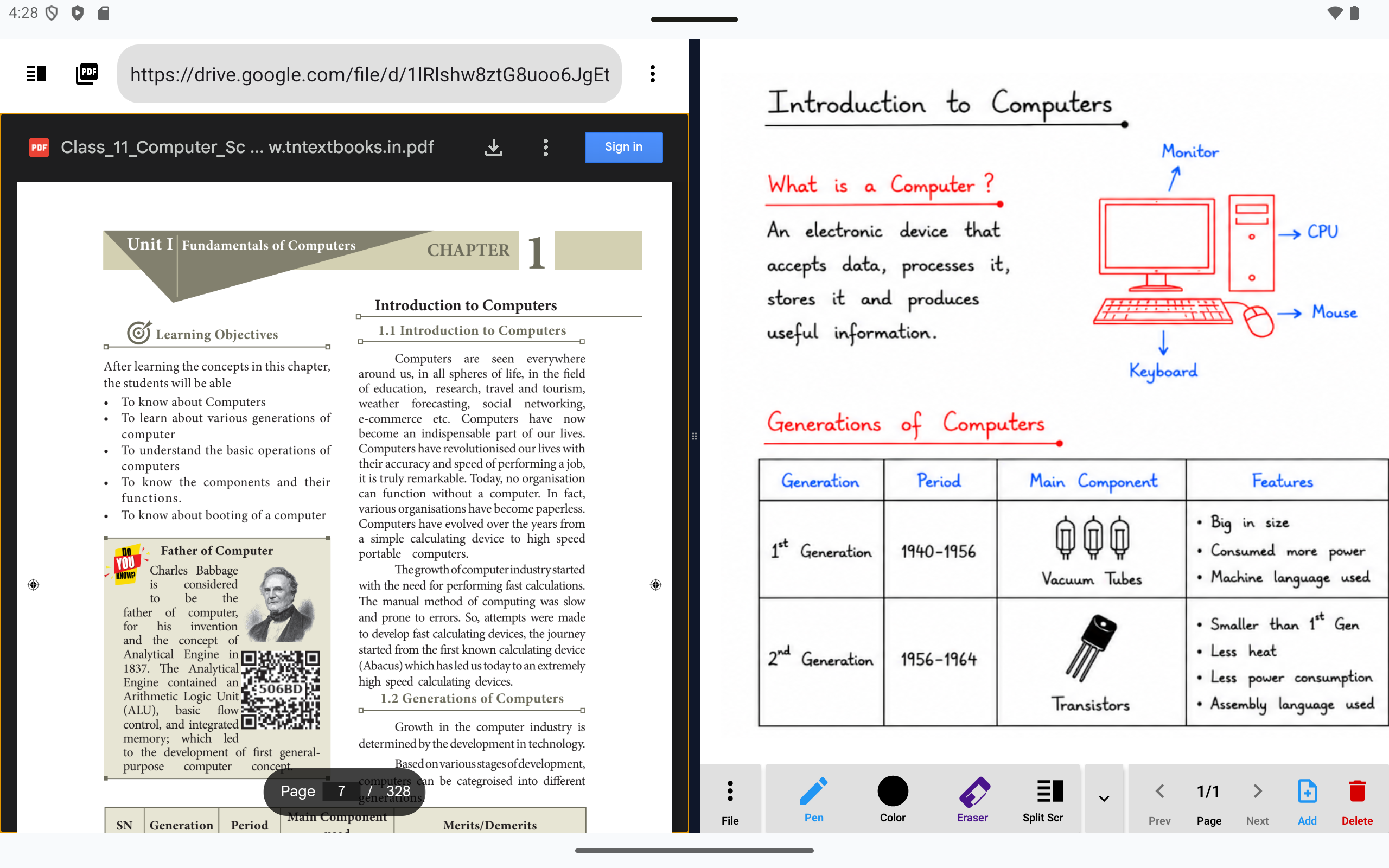
TutorBoard on a tablet, showing a PDF textbook on the left and handwritten whiteboard notes on the right.
  • Works on the tablet in your bag
  • Finger or stylus
  • Whiteboard works offline
  • Ready in one tap
Everything in one app

Three teaching tools, one screen

Most lessons need a board to explain on and material to teach from. TutorBoard gives you both, without juggling apps mid-class.

Digital whiteboard

Write, draw and explain exactly as you would on a real board — with pages you can add, flip through and keep for the next class.

PDF & web viewer

Open the textbook PDF from your device or pull up any website. Your material stays right where the lesson is happening.

Split screen teaching

Show any two of them side by side — the chapter on one half, your working on the other. No switching, no lost train of thought.
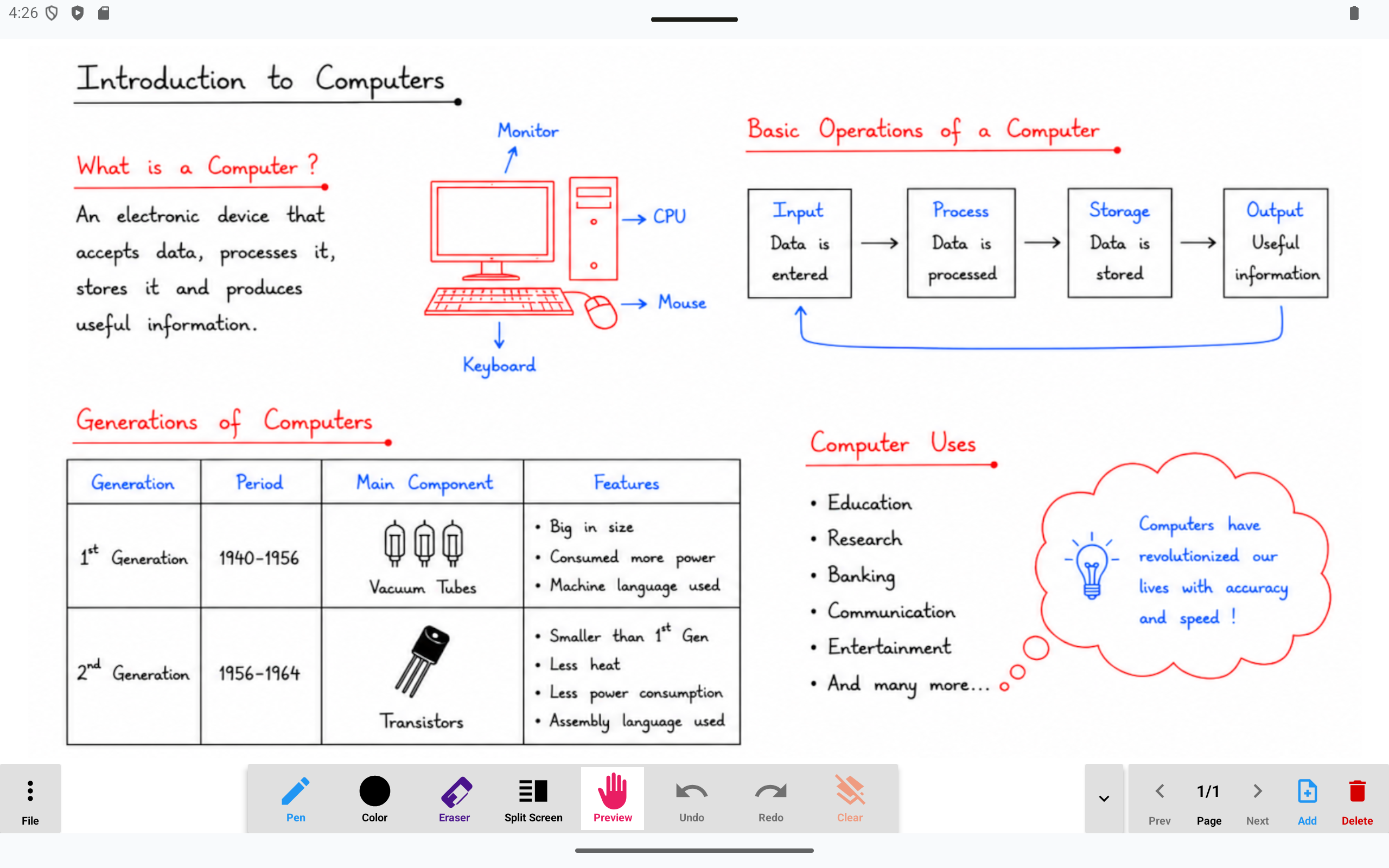
The TutorBoard whiteboard filled with handwritten notes, diagrams and a table, with the pen, colour, eraser and page tools along the bottom.
The whiteboard

A board that never runs out of space

Write with your finger or a stylus. Pinch to zoom in on a detail at the back of the room, and pan around — each page remembers exactly how you left it.
  • Four marker colours — black, red, blue and green, for the colour-coding students actually follow.
  • Eraser, undo, redo and clear — fix a slip without breaking your flow.
  • Multiple pages — add a page when you run out of room, and step back to page 1 when a student asks.
  • Preview mode — a tap turns drawing off, so you can zoom and move around without leaving a stray mark.
Pick a colour, keep teaching
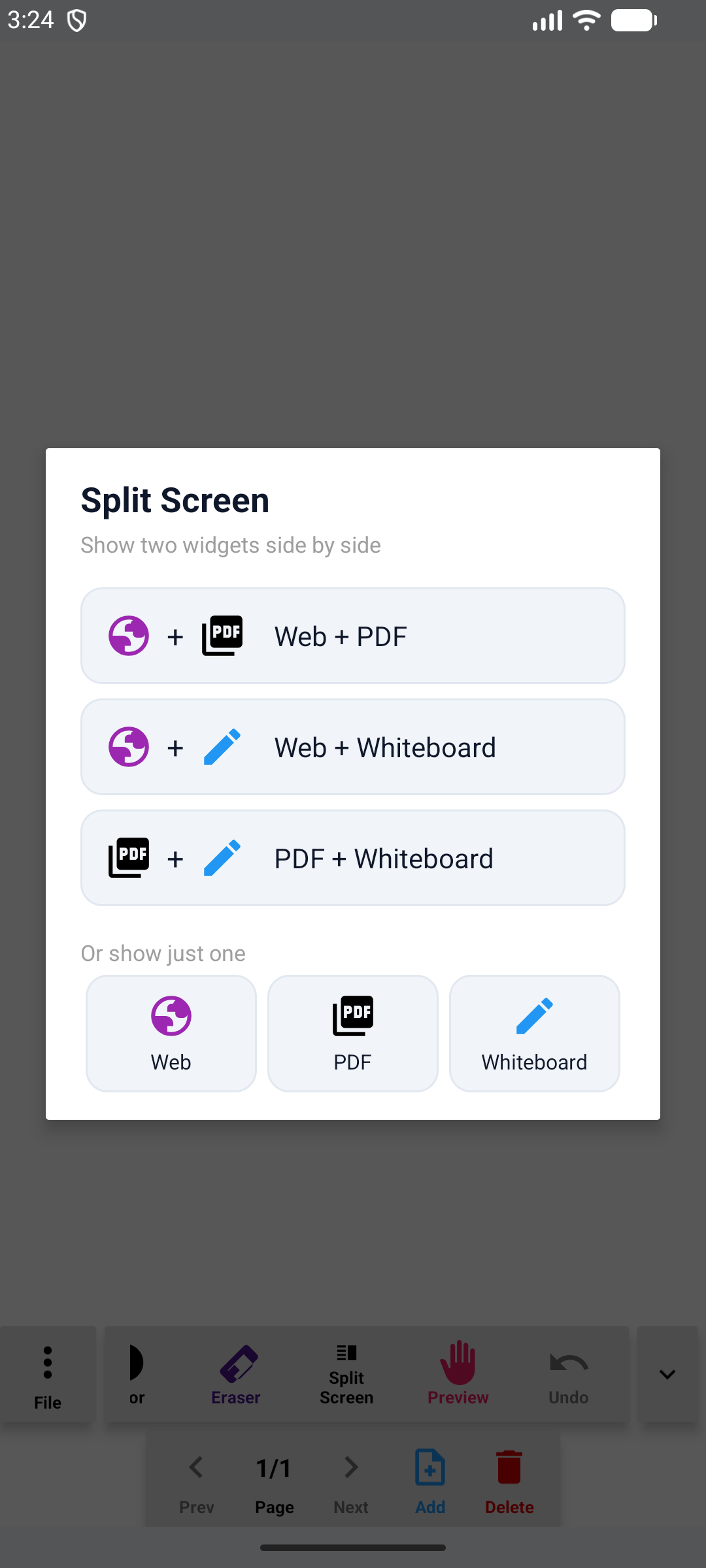
The split screen chooser in TutorBoard offering Web plus PDF, Web plus Whiteboard, PDF plus Whiteboard, or a single view.
Split screen

The question and your answer, side by side

Pick any two of Web, PDF and Whiteboard and they share the screen. The exercise stays visible while you work through it — which is exactly how students follow a solution.
  • PDF + Whiteboard — the textbook problem beside your working.
  • Web + Whiteboard — a diagram or video on one side, your notes on the other.
  • Web + PDF — the reference and the chapter together.
  • Or just one — go full screen whenever the moment needs it.
One dialog, one tap Remembers your last layout
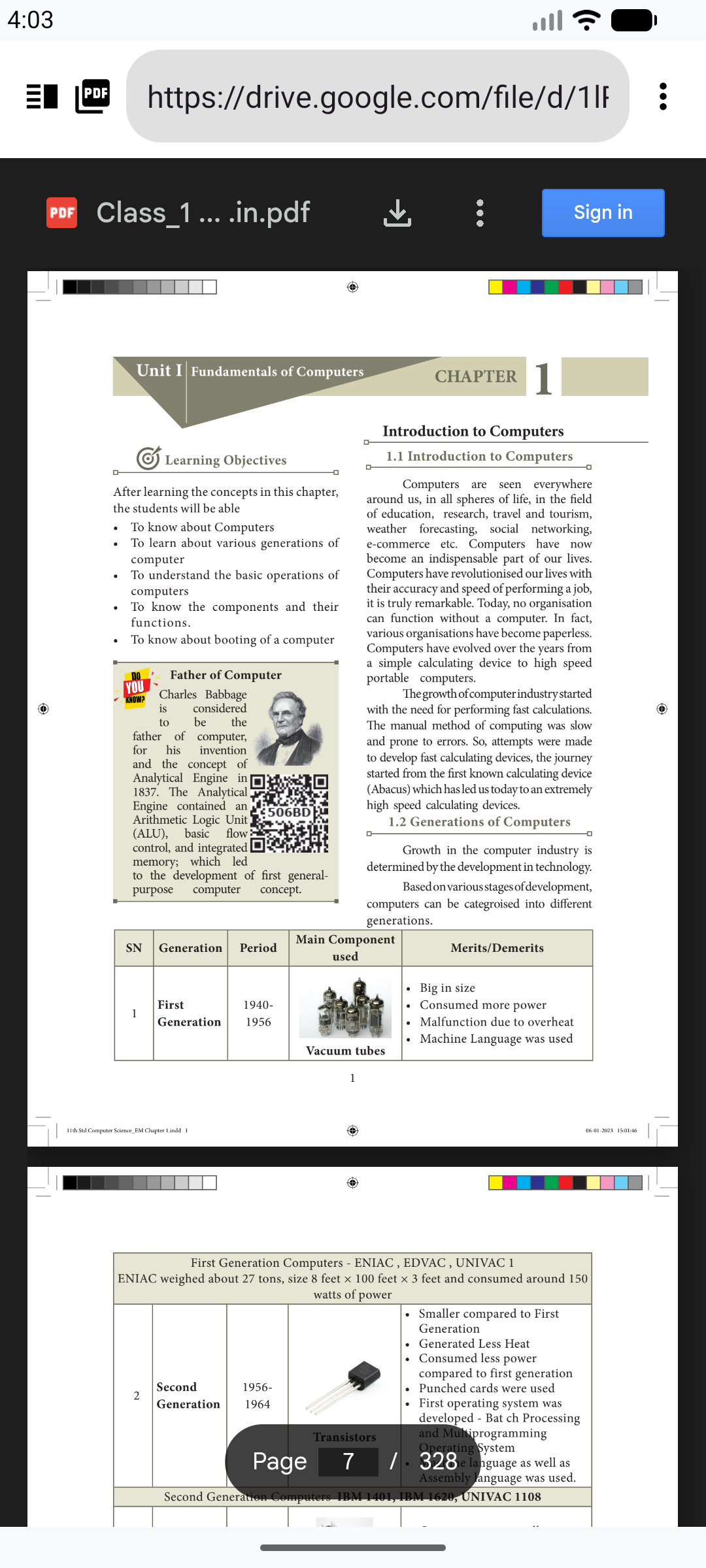
TutorBoard on a phone showing a PDF textbook open inside the built-in web viewer.
Web viewer & annotation

Draw straight onto a live web page

Type in an address and the page opens right inside TutorBoard. Switch the annotation layer on and you can mark up the page itself — circle the term that matters, underline the definition, point with a laser.
  • Pen, highlighter, underline, text and eraser over any page.
  • Laser pointer — draw every eye to the same line at once.
  • Back, forward, home and refresh — the browsing basics, nothing you have to learn.
  • Picks up where you left off — your last page and PDF are waiting next lesson.
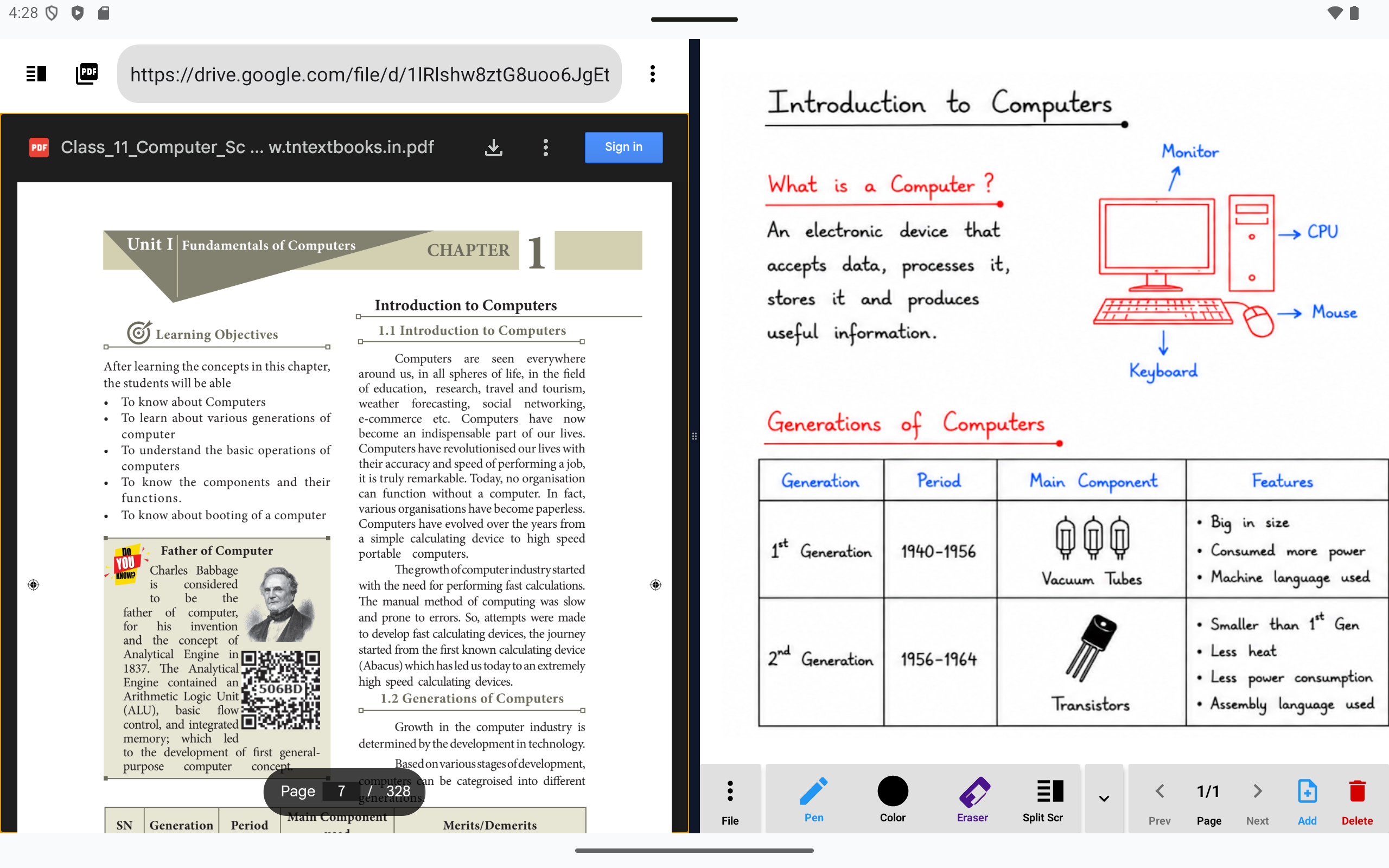
A 328-page textbook PDF open on the left of a tablet, showing the page counter, with whiteboard notes on the right.
PDFs & saved lessons

Your material in, your board out

Open a PDF from your device — a 300-page textbook is no trouble — and jump to the page you need. When the lesson is done, save the board and pick it up next week.

  • Open any PDF on your device, with page navigation and zoom.
  • Save the whole board — every page, every stroke, in one small file.
  • You choose where it goes — your own storage or cloud drive, through Android's file picker.
  • Reopen and carry on — revision class starts where the last one ended.
How it works

Teaching in about ten seconds

No setup, no sign-in, no manual. Open it and start explaining.

Open your material

Pick a PDF from your device or type in a web address. Skip this entirely if you just want a blank board.

Split the screen

Tap Split Screen and choose your pair — say, PDF and Whiteboard. Your material stays put on one side.

Write, then save

Explain it with the pen, add pages as you go, and save the board when you're done — or don't, and start fresh tomorrow.

Screenshots

See it in a real lesson

The same app on a phone in your pocket and the tablet on your desk.
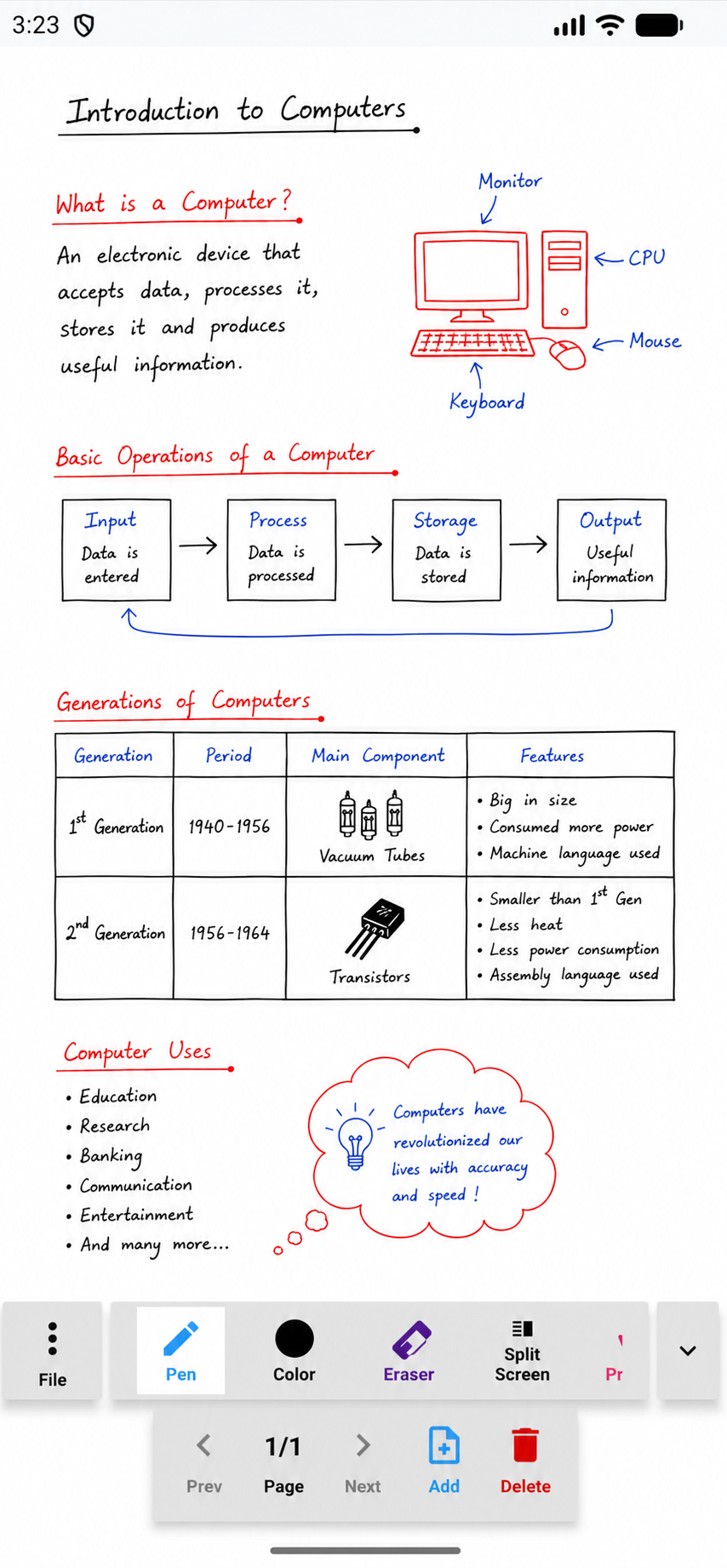
A whiteboard page of handwritten computer science notes on a phone.
The whiteboardYour explanation, in your handwriting
The split screen chooser on a phone, offering Web plus PDF, Web plus Whiteboard and PDF plus Whiteboard.
Split screen chooserPick any two views in one tap
A PDF textbook chapter open in the TutorBoard web viewer on a phone.
Your materialPDFs and websites, built in
A tablet in landscape showing a PDF textbook on the left half and matching handwritten whiteboard notes on the right half.

Split screen on a 10-inch tablet — chapter on the left, your working on the right.

Privacy

Your lessons stay on your device

TutorBoard has no accounts, no analytics and no advertising. We don't run a server for it, so there's nowhere for your notes to go — what you write stays in your hands, which is how it should be when there's a classroom of students in front of you.

No accountInstall and teach. Nothing to sign up for.
No trackingNo analytics, no ads, no third-party SDKs.
Your files, your storageBoards save where you choose, through Android's own picker.
Only two permissionsInternet for the web viewer, and reading the PDFs you pick.
Read the privacy policy
Questions

Good to know

Do I need a stylus?

No. TutorBoard is built to work with a finger, and a stylus simply gives you finer control if you have one. Pinch to zoom in when you want to write something small and neat.

Will it work on a phone, or do I need a tablet?

Both work. A tablet gives split screen more room to breathe, but everything — whiteboard, PDF, web and split screen — runs on a phone too, in portrait or landscape.

Does it work without internet?

The whiteboard and your saved boards work completely offline, and PDFs already on your device open without a connection. Only the web viewer needs internet, for the obvious reason.

Where do my saved boards go?

Wherever you point them. Saving opens Android's file picker, so you can keep boards in your device storage or your cloud drive. The file holds every page and stroke, and TutorBoard reopens it exactly as you left it.

Can I mark up a website, not just the whiteboard?

Yes. Turn on the annotation layer in the web viewer and you can draw over the live page with a pen, highlighter, underline, text and a laser pointer — useful when the diagram you need is already online.

Which Android versions are supported?

Android 9.0 (Pie) and newer, on phones and tablets.

What does it cost?

Nothing. There are no ads, no subscription and no paid unlock.
TutorBoard app icon

Teach Smarter

An interactive whiteboard for tutors, teachers and trainers — free, private, and ready on the device you already carry.

Get it onGoogle Play